

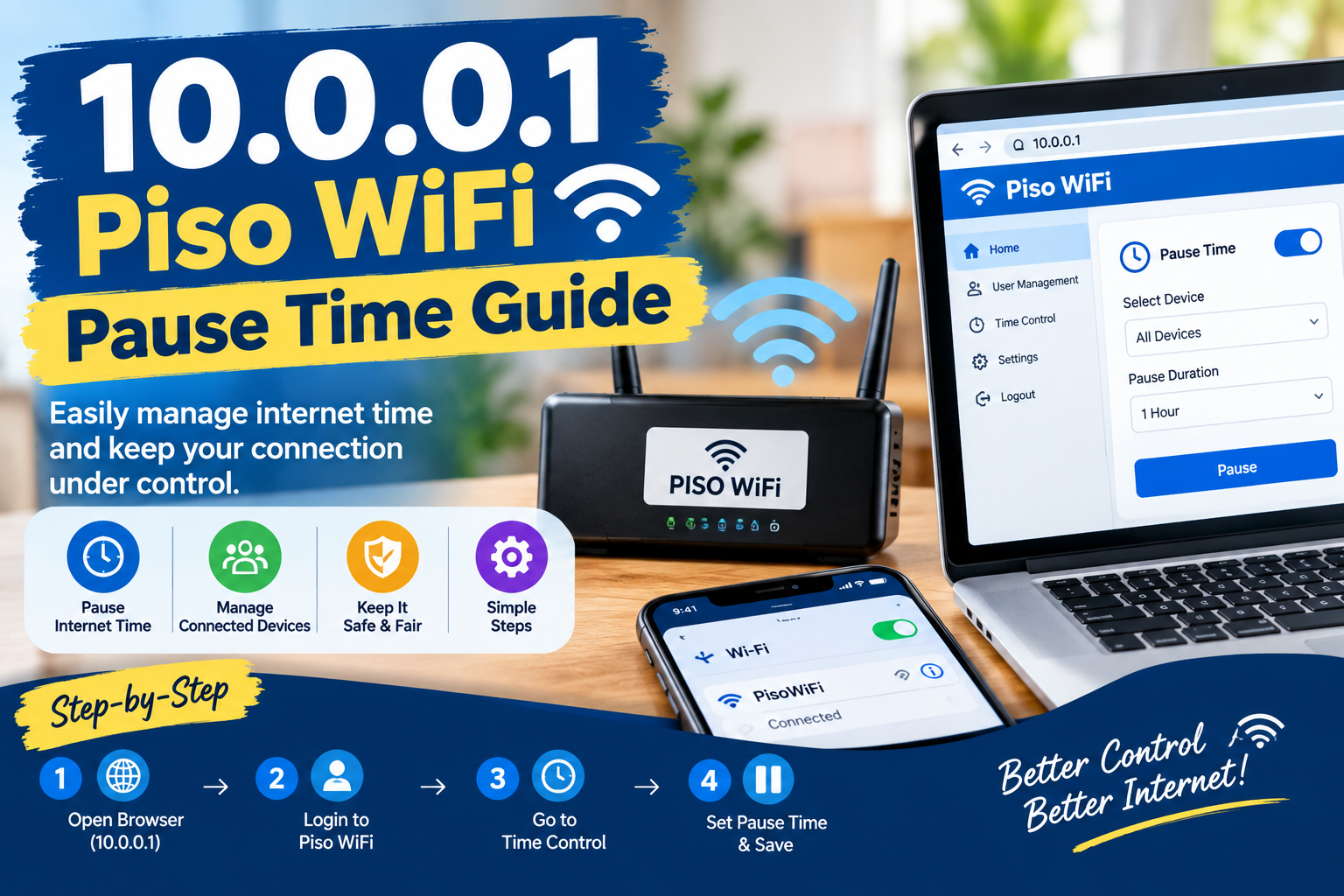
Piso WiFi has become a familiar part of internet access in many communities across the Philippines. From small neighborhood stores and sari-sari shops to waiting areas, terminals, boarding houses, and other public locations, Piso WiFi machines provide an affordable way for people to connect their phones, tablets, and laptops to the internet.
One of the most useful features available on many Piso WiFi systems is the ability to pause an active internet session. Instead of losing unused purchased time when a person stops browsing, the pause feature can allow the remaining session time to be temporarily stopped. Users can then resume the session later, depending on how the particular Piso WiFi system has been configured.
The address 10.0.0.1 is commonly associated with local Piso WiFi portals. When a device is connected to a compatible Piso WiFi network, entering the local gateway address in a browser may open a captive portal or user interface where customers can view their internet session, remaining time, and available controls.
Understanding how Piso WiFi pause time works can help Filipino users get better use from their purchased access. It can also help operators understand why some customers experience problems when trying to pause or resume their sessions.
What Is 10.0.0.1?
10.0.0.1 is a private IP address commonly used by certain routers, network devices, and local network systems.
Unlike a normal public website address, a private IP address is generally used inside a local network. This means that a user normally cannot access a Piso WiFi control page through 10.0.0.1 unless the device is connected to the appropriate Piso WiFi network.
When a customer connects to a Piso WiFi hotspot, the system may automatically redirect the browser to a local login or session page.
In some setups, typing 10.0.0.1 into the browser’s address bar can also open the local portal.
The exact interface depends on the Piso WiFi machine, router configuration, software, and settings used by the operator.
Therefore, two Piso WiFi locations can use the same local address while displaying different menus or features.
What Is Piso WiFi?
Piso WiFi is a popular prepaid WiFi model in the Philippines where users purchase internet access in small increments.
The word “piso” refers to the Philippine peso, reflecting the low-cost nature of the service. Depending on the operator and location, customers may insert coins into a vending-style WiFi machine or use another supported payment method.
After purchasing access, the system typically provides a certain amount of internet time.
For example, an operator might configure different packages based on price and duration.
A customer may purchase a short session for quick browsing or a longer session for activities such as watching videos, studying, messaging, or downloading files.
The actual prices, speeds, and time packages vary between locations.
What Does Pause Time Mean?
Pause time refers to the ability to temporarily stop an active internet session.
Imagine that a customer purchases one hour of WiFi access but only needs the internet for 20 minutes before leaving the area.
If the Piso WiFi system supports pausing, the customer may be able to stop the session and preserve the remaining time.
For example, if 60 minutes were purchased and 20 minutes were already used, approximately 40 minutes could remain.
When the session is paused, the countdown may stop.
The customer can then return later, reconnect to the same system, and resume the remaining session if the system allows it.
This feature can be particularly useful for people who do not want to continuously use their purchased internet time.
How Pause Time Works
The exact behavior of pause time depends on the Piso WiFi configuration.
A typical system works something like this:
- The customer connects to the Piso WiFi network.
- The customer purchases internet time.
- The system starts the session timer.
- The customer browses the internet.
- The customer selects the pause option.
- The active session is temporarily stopped.
- The remaining time stays associated with the session.
- The customer reconnects later.
- The customer selects the resume option.
- The remaining time becomes active again.
However, not every Piso WiFi installation uses the same system.
Some machines may allow pausing while others may not.
Some operators may also limit how long a session can remain paused.
This is why customers should check the information displayed on the local Piso WiFi portal.
How to Access the Piso WiFi Portal
If you are using a Piso WiFi hotspot and want to check whether pause functionality is available, start by connecting your device to the correct WiFi network.
After connecting, open a web browser.
Enter:
10.0.0.1
into the browser’s address bar.
If the local network is configured correctly, the Piso WiFi portal may appear.
The page could show information such as:
- Remaining time
- Session status
- Pause option
- Resume option
- Connection information
- Available WiFi packages
- Login or access controls
The appearance of the page can vary significantly between different Piso WiFi installations.
How to Pause a Piso WiFi Session
If the local Piso WiFi system supports session pausing, the process is generally straightforward.
First, connect your smartphone or other device to the Piso WiFi network.
Open the browser and access the local portal.
Look for a section showing your active session.
There may be a button labeled:
Pause
Tap or select the button.
The system should then change the session status from active to paused.
Some systems may display a confirmation message.
After the session has been paused, avoid assuming that the pause feature works indefinitely. The operator may have configured a maximum pause period.
The portal may display a remaining pause period or other information.
If the pause button is not visible, the particular Piso WiFi installation may not support customer-controlled pausing.
How to Resume Piso WiFi Time
Resuming a paused session is generally similar to pausing it.
Connect to the same Piso WiFi network.
Open the local portal.
Enter 10.0.0.1 if the portal does not automatically appear.
Look for your existing session.
If your session is still valid, you may see a Resume button.
Select it.
The system should reactivate the remaining internet time.
For example, suppose you originally purchased 60 minutes and used 15 minutes before pausing.
Approximately 45 minutes may remain, subject to the system’s timing rules.
After selecting Resume, the remaining session can continue counting down.
Why the Pause Button May Not Appear
A common question among Piso WiFi users is why the pause option is missing.
There are several possible explanations.
The System Does Not Support Pausing
Not every Piso WiFi configuration includes a pause feature.
The operator may have installed or configured a system where purchased time immediately begins counting down and cannot be paused.
The Operator Disabled the Feature
Some Piso WiFi systems may support pause functionality but allow the operator to disable it.
The machine’s owner may choose settings based on the type of service being provided.
Your Session Has Expired
If the purchased session has already reached zero, there may no longer be an active session to pause.
A pause function normally applies to an active session with remaining time.
The Device Is Not Connected Correctly
If your phone is connected to mobile data instead of the Piso WiFi network, the local portal may not work correctly.
Turn off mobile data temporarily and confirm that your phone is connected to the intended WiFi network.
The Portal Is Temporarily Unavailable
A local router, vending machine, or captive portal may experience technical problems.
In such cases, the address may not load even when the WiFi signal is visible.
What Is Pause Time Limit?
A pause time limit is the maximum amount of time a session can remain paused.
This setting is important because an operator may not want inactive sessions to remain stored forever.
For example, a system could potentially be configured so that a customer can pause a session but must resume it within a certain period.
The exact limit depends on the software and configuration.
There is therefore no single universal pause duration for every Piso WiFi machine in the Philippines.
One location may provide a different pause policy from another.
Customers should look at the local portal for information about their specific session.
Does Pausing Stop the Timer?
In a properly configured pause system, the purpose of pausing is generally to stop the active session timer.
However, the exact behavior depends on the software.
Some systems may distinguish between internet usage time and other types of session time.
For this reason, users should not assume that every Piso WiFi system calculates time in exactly the same way.
If the remaining time continues decreasing after selecting Pause, the system may not support true session pausing or there may be a technical problem.
Checking the session information after pausing can help determine whether the timer has actually stopped.
What Happens When WiFi Disconnects?
A WiFi disconnection does not necessarily mean that a session has been paused.
This is an important distinction.
Suppose a user walks away from the Piso WiFi hotspot without pressing Pause.
The phone may disconnect from the WiFi network, but the purchased session could continue counting down depending on how the system works.
Simply turning off WiFi should therefore not automatically be treated as a pause function.
If the portal provides a dedicated Pause button, use that feature when available.
Otherwise, the remaining time may continue to be consumed.
Can You Pause Piso WiFi Without the Portal?
Usually, customers should use the controls provided by the specific Piso WiFi system.
Simply disconnecting from WiFi does not necessarily pause a session.
The session may remain active on the network side even when the customer’s phone is no longer connected.
Some systems may automatically handle disconnected sessions differently, but this behavior varies.
Therefore, users should check the portal rather than relying on assumptions.
If there is a Pause button, use it.
If there is no Pause option, the operator may have configured the system without that feature.
Common 10.0.0.1 Problems
Although 10.0.0.1 is a simple local address, users can encounter several problems.
One common issue is that the page does not open.
Another is that the portal loads but does not show the current session.
Sometimes the page may load slowly or redirect repeatedly.
These problems can have several causes.
Possible causes include:
- Weak WiFi signal
- Incorrect WiFi network
- Mobile data interference
- Router problems
- Captive portal issues
- Browser cache problems
- Incorrect network configuration
- Temporary system maintenance
- Expired session
- Device-specific compatibility issues
The best troubleshooting approach is to start with basic connectivity checks.
What to Do If 10.0.0.1 Does Not Open
If 10.0.0.1 does not open, first check that your device is connected to the Piso WiFi network.
Next, temporarily disable mobile data.
Then open the browser and enter the address directly.
If the page still does not load, disconnect from the WiFi network and reconnect.
You can also try opening a different browser.
If the Piso WiFi network itself is not providing internet or local portal access, the issue may be on the machine or router side rather than your phone.
In that situation, the machine operator may need to inspect the equipment.
Android Users and Piso WiFi
Android phones are commonly used with Piso WiFi because of their widespread availability in the Philippines.
When an Android phone connects to a captive WiFi network, the phone may display a notification asking the user to sign in to the network.
Selecting the notification can sometimes open the Piso WiFi portal automatically.
If it does not, the user can open a browser and enter the local address.
Users should make sure that the phone is actually connected to the Piso WiFi network.
A phone can sometimes automatically switch between WiFi and mobile data depending on its settings.
This can make troubleshooting confusing.
iPhone Users and Piso WiFi
iPhone users can also access compatible Piso WiFi networks.
After connecting to the hotspot, the device may automatically display a login or captive portal screen.
If the portal does not appear, opening a browser and entering the local network address may help.
As with Android, mobile data can sometimes interfere with the expected connection behavior.
Users should check the WiFi settings and confirm that the correct hotspot is selected.
Can Pause Time Be Extended?
A pause function normally controls an existing session rather than creating additional free time.
If a user has purchased a particular amount of access, the pause feature generally preserves the unused portion according to the system’s configuration.
It does not necessarily add additional minutes.
For example, if a customer has 30 minutes remaining and pauses the session, the purpose is generally to preserve those 30 minutes until the session is resumed or reaches its applicable expiration condition.
Users should not expect the pause button to increase the original amount of purchased time.
Why Piso WiFi Operators Offer Pause Features
From an operator’s perspective, pause functionality can improve the user experience.
Customers often need to move away from the WiFi hotspot temporarily.
A student might need to attend a class.
A commuter might need to leave a waiting area.
A customer might need to save battery power.
Someone might simply want to stop using the internet for a while.
Without a pause option, customers could lose unused time while they are away.
A properly configured pause system gives customers greater flexibility while still allowing the operator to manage sessions.
Piso WiFi and Affordable Internet Access
Affordable public WiFi has an important role in many Philippine communities.
Not everyone has access to a high-cost home broadband subscription.
Some people rely on mobile data, while others use public WiFi when they need additional connectivity.
Piso WiFi provides a low-cost option for short-term internet access.
Users can purchase only the amount of access they need instead of committing to a longer subscription.
This can be useful for students, workers, travelers, small business owners, and people who need temporary connectivity.
The pause function adds another layer of flexibility for customers who do not need continuous internet access.
Security Tips for Piso WiFi Users
Public WiFi should always be used carefully.
A user should avoid performing highly sensitive activities on an unknown network whenever possible.
For example, accessing financial accounts over public WiFi requires extra caution.
Users should also make sure that websites involving passwords or personal information use secure connections.
Never share account passwords with other people.
Avoid downloading unknown applications simply because a public WiFi portal recommends them.
A legitimate captive portal should not require users to install suspicious software to access ordinary internet service.
If a portal requests unusually sensitive information unrelated to WiFi access, users should stop and verify the request.
Protecting Your Phone on Public WiFi
Keeping your smartphone updated is one useful security practice.
Users should also use screen locks and avoid leaving their devices unattended.
Bluetooth and other wireless features should be managed according to personal security preferences.
When finished using a public WiFi network, users can remove or forget the network from their device if they do not plan to use it again.
This reduces the possibility of automatically reconnecting to a network later.
Frequently Asked Questions
What is 10.0.0.1 Piso WiFi?
10.0.0.1 can serve as a local gateway or portal address in some Piso WiFi installations. It may allow connected users to access their session information and available controls.
How do I pause Piso WiFi time?
Connect to the Piso WiFi network, open the local portal, and look for the Pause option. If no Pause button appears, that particular system may not have the feature enabled.
Does disconnecting WiFi pause my time?
Not necessarily. Disconnecting your phone from WiFi is different from using a dedicated session-pause function.
How do I resume my Piso WiFi session?
Reconnect to the same Piso WiFi network, open the local portal, and look for the Resume option if your session is still valid.
Why can’t I access 10.0.0.1?
Your device may not be connected to the correct network, the local portal may be unavailable, or the Piso WiFi system may be experiencing a technical problem.
Is 10.0.0.1 a normal website?
No. It is a private local IP address commonly used within local networks. It is not the same as a normal public website address.
Does every Piso WiFi machine have pause time?
No. Pause functionality depends on the particular Piso WiFi software and settings used by the operator.
Can I increase my remaining Piso WiFi time using Pause?
Normally, pausing is intended to preserve remaining time rather than create additional time. The exact behavior depends on the system configuration.
What should I do if my session disappears?
Reconnect to the Piso WiFi network and check the portal. If the session remains unavailable, contact the machine operator because the issue may require access to the system’s configuration.
Final Thoughts
The 10.0.0.1 Piso WiFi pause time feature can be useful for Filipino users who want more flexibility from prepaid internet access. Instead of allowing an active session to continue while they are away, a supported pause function can temporarily stop the session and preserve the remaining time.
The important point is that not every Piso WiFi installation works in exactly the same way. The availability of Pause, Resume, session limits, and expiration rules depends on the particular system and settings used by the operator.
If you are using a Piso WiFi hotspot, connect to the correct network first and access the local portal through 10.0.0.1 when appropriate. Check the session screen for the available controls rather than assuming that every machine uses identical settings.
Users should also remember that disconnecting from WiFi is not necessarily the same as pausing a session. When a dedicated Pause option is available, using that option is the more reliable way to temporarily stop an active session.
Finally, public WiFi should be used responsibly. Protect passwords, OTPs, identification information, and financial details, and be cautious of suspicious pages pretending to be registration or WiFi portals.
For people across the Philippines who rely on affordable public connectivity, understanding how Piso WiFi sessions and pause functionality work can make everyday internet use more convenient and predictable.

