

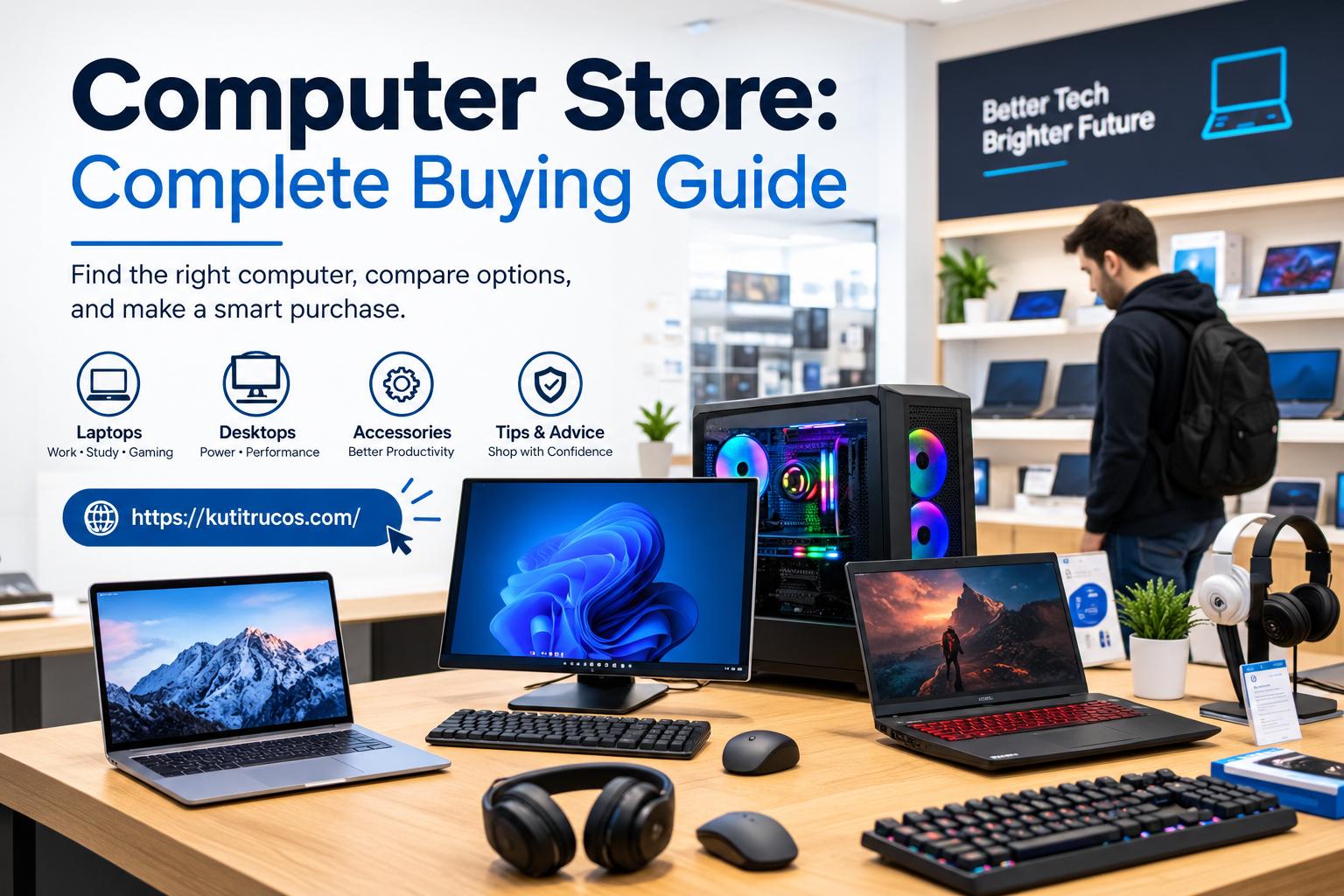
Finding the right computer store can make buying a laptop, desktop, gaming PC, monitor, or computer accessory much easier. Modern computer stores offer far more than basic computers. Customers can usually find laptops for school and work, desktops for home offices, gaming systems, monitors, printers, keyboards, mice, storage devices, networking equipment, software, and other technology products.
The challenge is that there are hundreds of computer models available, and the specifications can sometimes be confusing. Processor names, RAM capacity, SSD storage, graphics cards, display resolutions, operating systems, and connectivity options can all affect the buying decision.
A good shopping process starts with understanding what you actually need. Current computer-buying guidance from HP and Microsoft emphasizes starting with your intended use before deciding which specifications and form factor to purchase.
What Is a Computer Store?
A computer store is a retail business that sells computers and related technology products and, in many cases, provides services such as repairs, upgrades, setup, data transfer, technical support, and device installation.
Depending on the business, a computer store may specialize in:
- Laptop computers
- Desktop computers
- Gaming PCs
- Mac computers
- Windows PCs
- Chromebooks
- Business computers
- Monitors
- Computer accessories
- Printers
- Networking equipment
- Storage devices
- Computer components
- Software
- Repair services
- Upgrades
- Data recovery
Some stores operate physical locations where customers can see products before buying, while others operate primarily online. Large retailers may combine both approaches by allowing customers to shop online and pick up products at a nearby store.
Why Choose a Local Computer Store?
A local computer store can provide several advantages compared with buying technology without assistance.
One major benefit is the opportunity to see and compare products in person. Laptop keyboards, screens, trackpads, desktop sizes, and monitors can feel very different even when their specifications look similar online.
A local store may also provide technical assistance.
For example, customers may need help with:
- Setting up a new computer
- Transferring files
- Installing software
- Connecting printers
- Configuring Wi-Fi
- Upgrading RAM
- Replacing storage
- Removing malware
- Diagnosing hardware problems
Some retailers also offer repair and technical-support services. Best Buy, for example, currently lists computer support services including software installation, file backup, and virus removal through Geek Squad.
Types of Computers Available
A computer store can carry several different types of computers.
The right choice depends primarily on how the device will be used.
Laptops
Laptops combine a screen, keyboard, trackpad, battery, and computer hardware into one portable device.
They are useful for:
- Students
- Remote workers
- Travelers
- Business professionals
- Freelancers
- Home users
Modern laptops are available in many sizes and performance levels.
A lightweight laptop may be ideal for travel, while a larger workstation-style laptop may be more appropriate for demanding professional applications.
Desktop Computers
A traditional desktop typically consists of a computer tower, monitor, keyboard, and mouse.
Desktop computers can offer several advantages, including greater upgrade flexibility, larger displays, improved cooling, and strong performance for the money. HP’s current buying guidance also highlights desktops for users who prioritize performance, screen size, and future upgrades.
All-in-One Computers
An all-in-one computer integrates the computer hardware into the display.
This design reduces cable clutter and can create a clean appearance for home offices, reception desks, classrooms, and other workspaces.
The trade-off is that many all-in-one computers provide less upgrade flexibility than traditional desktop towers.
Mini PCs
Mini PCs are compact desktop computers designed to save space.
They can be useful for:
- Small offices
- Home offices
- Media centers
- Basic productivity
- Digital signage
- Light business applications
Because of their small size, they can fit into locations where a traditional desktop tower would be inconvenient.
Gaming Computers
Gaming PCs are designed for demanding graphics workloads.
A gaming computer typically includes a dedicated graphics card, powerful processor, sufficient RAM, fast storage, and cooling designed for sustained workloads.
Gaming PCs can also be useful for video editing, 3D applications, animation, and other demanding tasks.
How to Choose a Computer Store
Not every computer store offers the same products or services.
Before purchasing, consider several factors.
Product Selection
Look for a store that carries the type of computer you need.
For example, a gaming customer may want a store with gaming desktops, graphics cards, high-refresh-rate monitors, and gaming accessories.
A business customer may instead prioritize business laptops, docking stations, monitors, printers, and networking products.
Product Specifications
A computer store should provide clear specifications.
Important details include:
- Processor
- RAM
- Storage
- Graphics
- Display
- Operating system
- Ports
- Wireless connectivity
- Battery capacity for laptops
Comparing complete configurations is important. Two laptops can have similar processor names but differ significantly in RAM, storage, display, or graphics configuration.
Warranty
Warranty coverage is another important consideration.
Before buying, check:
- Manufacturer warranty
- Store warranty
- Return period
- Repair process
- Accidental-damage coverage
- Extended warranty options
Customer Support
Technical support can be valuable, especially for people who are not comfortable setting up or troubleshooting computers themselves.
A store that provides setup, installation, repair, or data-transfer services can be useful for customers who want assistance after purchasing a device.
Choosing a Computer for School
Students often need computers for web browsing, online classes, research, documents, presentations, video calls, and educational applications.
A basic laptop can handle many of these activities.
When choosing a student computer, consider:
- Battery life
- Weight
- Screen size
- Keyboard quality
- Webcam
- Wi-Fi
- Storage
- RAM
- Operating system
- Durability
Portability can be particularly important for students who carry a laptop between home, school, libraries, and other locations.
Choosing a Computer for Business
Business users often have different requirements from casual users.
A business computer may need to handle:
- Microsoft Office
- Web applications
- Video conferencing
- Accounting software
- Customer management systems
- Cloud applications
- Large spreadsheets
- Multiple browser tabs
Microsoft’s current PC guidance recommends starting with the actual workload before deciding how much performance is necessary.
Business customers should also consider security, warranty support, docking compatibility, webcam quality, and connectivity.
Choosing a Computer for Home Use
A home computer may be used for many different activities.
Common tasks include:
- Web browsing
- Streaming
- Online shopping
- Social media
- Personal finances
- Photo storage
- Video calls
- Schoolwork
- Light gaming
For these activities, customers generally do not need the same hardware as someone editing professional video or running advanced 3D software.
Starting with the actual tasks can help prevent unnecessary spending.
Choosing a Gaming PC
Gaming requires more attention to graphics performance.
A gaming computer should be evaluated based on:
- Graphics processing unit
- Processor
- RAM
- SSD storage
- Cooling
- Power supply
- Monitor refresh rate
- Resolution
Microsoft’s current PC guidance notes that integrated graphics can be suitable for everyday computing, while gaming and demanding creative workloads may benefit from a dedicated GPU.
The graphics card is particularly important because modern games can place heavy demands on GPU performance.
Understanding Computer Processors
The processor, or CPU, is one of the most important components in a computer.
It handles instructions and helps determine how quickly a computer can perform many tasks.
When comparing computers, do not look only at the processor’s brand or model family.
Also consider:
- Generation
- Number of cores
- Performance class
- Power efficiency
- Integrated graphics
- Intended workload
A basic processor can be sufficient for everyday browsing and office work, while demanding professional workloads may require a higher-performance processor.
How Much RAM Do You Need?
RAM, or random-access memory, affects how well a computer handles multiple active applications and tasks.
A computer with insufficient RAM may become less responsive when many applications or browser tabs are open.
When shopping, consider how you use your computer.
Basic users, students, business users, creators, and gamers can have very different memory requirements.
It is also important to determine whether RAM can be upgraded later. Some modern laptops have memory integrated directly into the motherboard, which can limit future upgrade options.
SSD Storage vs. Hard Drives
Storage determines where your operating system, applications, documents, photos, videos, and other files are stored.
Modern computers increasingly use SSDs rather than traditional mechanical hard drives.
SSDs generally provide fast system startup and application loading.
When selecting storage, think about how much data you keep locally.
Someone who mainly uses cloud storage may need less internal capacity than a photographer, video editor, gamer, or business user with large local files.
Choosing a Computer Monitor
A monitor can significantly affect the overall computer experience.
Important monitor specifications include:
- Screen size
- Resolution
- Refresh rate
- Panel type
- Brightness
- Color accuracy
- Connectivity
- Ergonomics
For general office work, a comfortable high-resolution display can make documents and multitasking easier.
Gamers may prioritize higher refresh rates.
Photographers and video editors may place greater importance on color accuracy.
Microsoft’s current PC guidance recommends considering resolution, refresh rate, and color accuracy according to the intended workload.
Computer Accessories
A computer store usually sells more than computers.
Popular accessories include:
- Keyboards
- Mice
- Headsets
- Webcams
- Speakers
- Laptop bags
- Backpacks
- USB hubs
- Docking stations
- External storage
- Memory cards
- Chargers
- Power strips
- Printers
- Monitors
- Monitor stands
The right accessories can improve comfort, productivity, connectivity, and device protection.
Laptop Accessories
Laptop owners may need additional accessories for work or travel.
Common options include:
- Laptop sleeves
- Carrying cases
- USB-C hubs
- Docking stations
- Wireless mice
- External keyboards
- External monitors
- Laptop stands
- Cooling pads
- External SSDs
- Chargers
Best Buy’s current laptop buying guide also highlights accessories such as mice, bags, storage drives, printers, and software as useful additions to a laptop setup.
Computer Repair Services
Many computer stores also provide repair services.
Common repairs include:
- Slow computer troubleshooting
- Screen replacement
- Battery replacement
- Keyboard repair
- Charging problems
- Hard-drive replacement
- SSD upgrades
- RAM upgrades
- Operating-system problems
- Malware removal
- Software installation
- Data recovery
Some repairs can be completed quickly, while others require diagnostic testing and replacement parts.
Before leaving a computer with a repair shop, ask about estimated cost, turnaround time, warranty, and data privacy.
Computer Upgrades
Upgrading an existing computer can sometimes be more practical than purchasing a new one.
Common upgrades include:
- Increasing RAM
- Installing an SSD
- Replacing an old hard drive
- Adding a graphics card
- Upgrading cooling
- Adding storage
- Replacing a battery
However, not every computer supports every upgrade.
A technician can check compatibility before you purchase a component.
Computer Store for Business Customers
Businesses often need multiple computers and accessories.
A computer store may help businesses purchase:
- Business laptops
- Desktop computers
- Monitors
- Printers
- Networking equipment
- Docking stations
- Security products
- Storage
- Accessories
Businesses should consider standardizing computer models when possible.
Using similar hardware across an organization can simplify setup, maintenance, replacement, and technical support.
Computer Store for Remote Workers
Remote workers often need more than just a laptop.
A productive home-office setup may include:
- Laptop or desktop
- External monitor
- Keyboard
- Mouse
- Webcam
- Headset
- Docking station
- Reliable Wi-Fi
- Backup storage
An external monitor can make multitasking easier, while a proper keyboard and mouse can provide a more comfortable workstation.
Buying a Computer Online vs. In Store
Both options have advantages.
Buying Online
Online stores provide:
- Large product selection
- Easy price comparison
- Detailed specifications
- Customer reviews
- Home delivery
- Convenient shopping
Buying In Store
Physical computer stores provide:
- Hands-on product inspection
- Immediate purchase
- Staff assistance
- Local pickup
- In-person support
- Easier comparison of keyboards and displays
The best approach depends on how comfortable you are researching specifications and whether you need the computer immediately.
Refurbished Computers
Some computer stores sell refurbished computers.
A refurbished computer may have been previously owned, returned, repaired, inspected, or restored before being resold.
Refurbished devices can be attractive to buyers with limited budgets.
However, check:
- Warranty
- Battery condition
- Cosmetic condition
- Storage health
- RAM configuration
- Return policy
- Operating system
- Included accessories
A lower purchase price should always be considered alongside the condition and warranty.
Used Computer Buying Guide
Buying a used computer requires additional caution.
Before purchasing, check the physical condition and verify that the device functions correctly.
For laptops, examine:
- Screen
- Keyboard
- Trackpad
- Battery
- Charging port
- USB ports
- Webcam
- Speakers
- Wi-Fi
- Storage
For desktops, check:
- Power supply
- Fans
- Ports
- Graphics card
- Storage
- RAM
- Internal condition
It is also useful to verify that the computer can run the operating system and applications you need.
How Much Should You Spend?
There is no single price that represents a good computer for everyone.
Your budget should be connected to your workload.
A basic computer for browsing and documents does not need the same specifications as a workstation for video editing or a gaming PC.
A useful approach is to identify the applications you use most often and then purchase hardware that comfortably supports those applications.
This prevents two common problems: paying for performance you do not need or buying an underpowered machine that becomes frustrating to use.
Questions to Ask at a Computer Store
Before buying, consider asking:
- What processor does this computer use?
- How much RAM does it have?
- How much SSD storage is included?
- Can the RAM be upgraded?
- Can the storage be upgraded?
- What graphics solution does it use?
- What is the screen resolution?
- What is the refresh rate?
- What ports are included?
- What operating system comes installed?
- How long is the warranty?
- What is the return policy?
- Is technical support available?
- Are accessories included?
- Is the computer suitable for my specific software?
These questions can make it easier to compare multiple computers.
How to Compare Two Computers
When comparing two computers, avoid focusing on a single specification.
Instead, compare the complete configuration.
For example, look at:
Processor + RAM + Storage + Graphics + Display + Battery + Ports + Warranty
A laptop with a faster processor may not be the better fit if it has significantly less RAM, a smaller SSD, a weaker display, or poor battery life for your particular needs.
Current buying guidance from HP similarly recommends considering the complete use case and system configuration rather than focusing on one specification.
Computer Store for Creative Professionals
Photographers, designers, video editors, architects, and other creative professionals may require higher-performance computers.
Depending on the application, they may need:
- High-performance CPU
- Dedicated GPU
- Large RAM capacity
- Fast SSD
- Color-accurate display
- Multiple monitors
- High-speed external storage
- Fast connectivity
Video editing and 3D applications can place significantly greater demands on hardware than everyday office work.
Before purchasing, check the recommended hardware requirements for the specific software you plan to use.
Computer Store for Students
Students often prioritize affordability and portability.
A good student computer should provide enough performance for schoolwork without becoming unnecessarily heavy or difficult to carry.
Important features can include:
- Comfortable keyboard
- Good battery life
- Reliable Wi-Fi
- Webcam
- Lightweight design
- Adequate storage
- Enough RAM
Students who study design, engineering, computer science, architecture, or video production may require more powerful hardware than students primarily working with documents and web applications.
Computer Store for Seniors
Simplicity can be especially valuable for users who do not need advanced computer features.
A computer for everyday use should have:
- Clear display
- Comfortable keyboard
- Simple setup
- Reliable Wi-Fi
- Good support
- Easy-to-use operating system
A larger display can also make text and interface elements easier to view.
Computer Store and Data Security
Computer purchases should also include consideration of security.
Modern computers should be protected with:
- Strong passwords
- Operating-system updates
- Security software where appropriate
- Regular backups
- Multi-factor authentication for important accounts
Before selling or recycling an old computer, make sure personal information is properly removed.
A factory reset may be appropriate in many situations, but highly sensitive data may require additional secure data-erasure procedures.
Recycling an Old Computer
Replacing a computer creates an opportunity to recycle the old device responsibly.
Some major electronics retailers offer recycling programs for computers and other electronic equipment. Best Buy currently provides a recycling program alongside its computer services.
Before recycling a computer, remove personal accounts and protect or erase personal data.
Also remember that batteries and electronic components may have specific recycling requirements.
Final Thoughts
Choosing the right computer store is only the first step. The more important decision is choosing a computer that matches your actual needs.
Students may prioritize portability and battery life. Business users may need reliability, connectivity, and support. Gamers may focus on GPU performance, cooling, and display refresh rate. Creative professionals may require powerful processors, dedicated graphics, substantial RAM, fast storage, and accurate displays.
The computer market includes laptops, desktops, all-in-one systems, mini PCs, gaming computers, workstations, and Chromebooks. Each category serves different types of users.
Before buying, compare the processor, RAM, storage, graphics, display, ports, operating system, upgradeability, warranty, and overall price. Current guidance from major technology companies also recommends starting with your intended use instead of choosing a computer based only on specifications or marketing claims.
A good computer store can also provide valuable services after the sale, including setup, repairs, upgrades, software installation, data transfer, and technical support.
Whether you are shopping for your first laptop, replacing an aging desktop, building a gaming setup, or upgrading a home office, taking time to understand your requirements can help you select a computer that fits your workload, budget, and long-term expectations.

